Easy to use
Choose US Letter, Half Letter, or A4 before importing or printing.
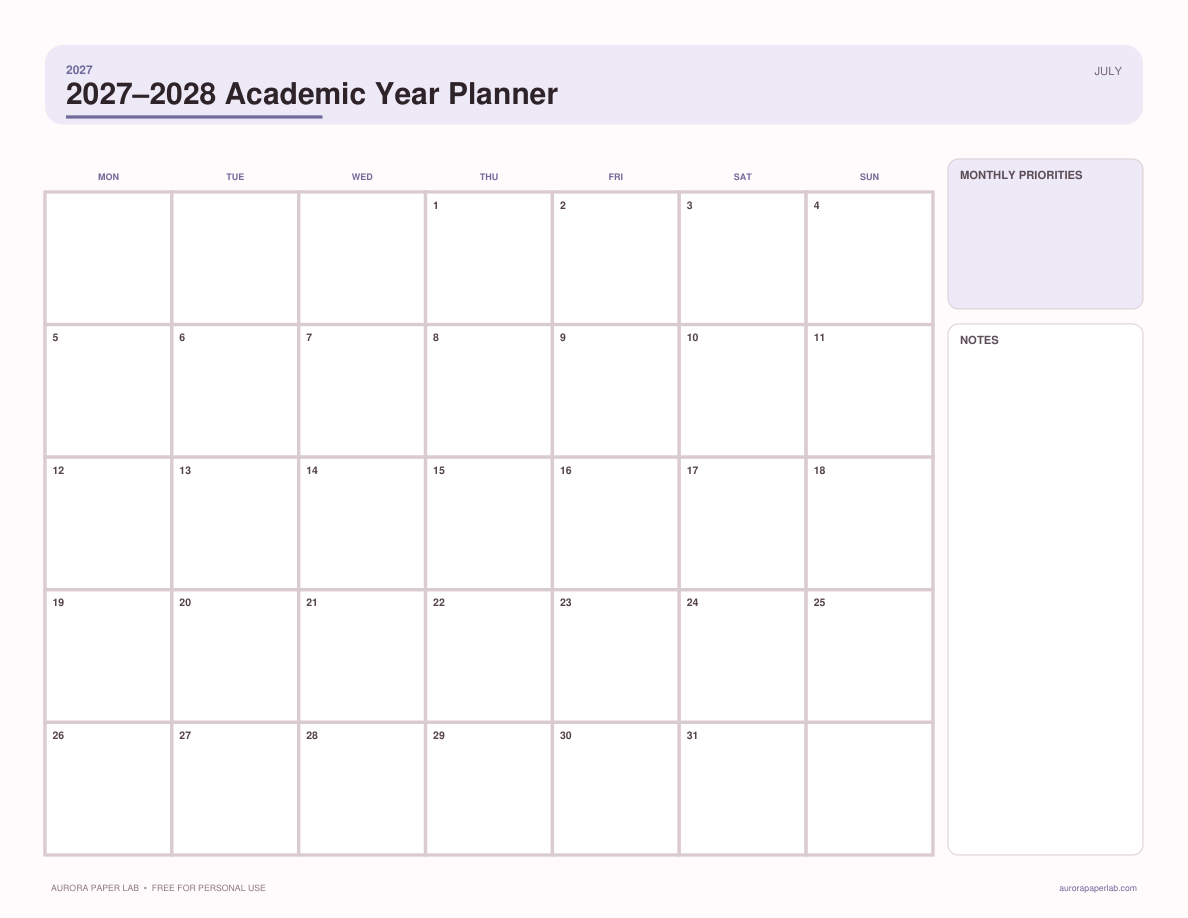
Plan July 2027 through June 2028 with term goals, key dates, assignments, and monthly milestones.
Customize the page in Design Studio, or download the clean original PDF immediately.
Choose US Letter, Half Letter, or A4 before importing or printing.
Open it in Design Studio and add your own text, colors, stickers and images.
Review the completed academic year page before starting a new copy. Keep the fields that changed a decision and leave low-value sections blank.
Yes. This is an instant free download and no account is required.
The resource is provided as PDF · 3 sizes. Keep one clean master copy before writing on, duplicating or importing it.
PDF planner pages can usually be imported into PDF-friendly note apps such as Goodnotes. Compatibility depends on the app and device, so keep the original file and test your workflow first.
Yes. Choose Customize in Design Studio to open 2027–2028 Academic Year Planner as a locked reference layer and add your own text, stickers, images and layout elements on top.
Yes. Use Actual Size / 100% for the matching paper. If your printer cannot print to the edge, keep Fit disabled and accept the built-in safe margin.
2027–2028 Academic Year Planner is designed around the July 2027–June 2028 school year. The layout keeps the decision-making fields visible and leaves enough writing room for a realistic planning session.
Use Actual Size / 100% for the matching paper. If your printer cannot print to the edge, keep Fit disabled and accept the built-in safe margin.
Import the PDF as a new document, preserve one blank master, and duplicate only the page you are ready to use.
Open the template in Studio, keep the base page locked, and layer your text, stickers and images above it.
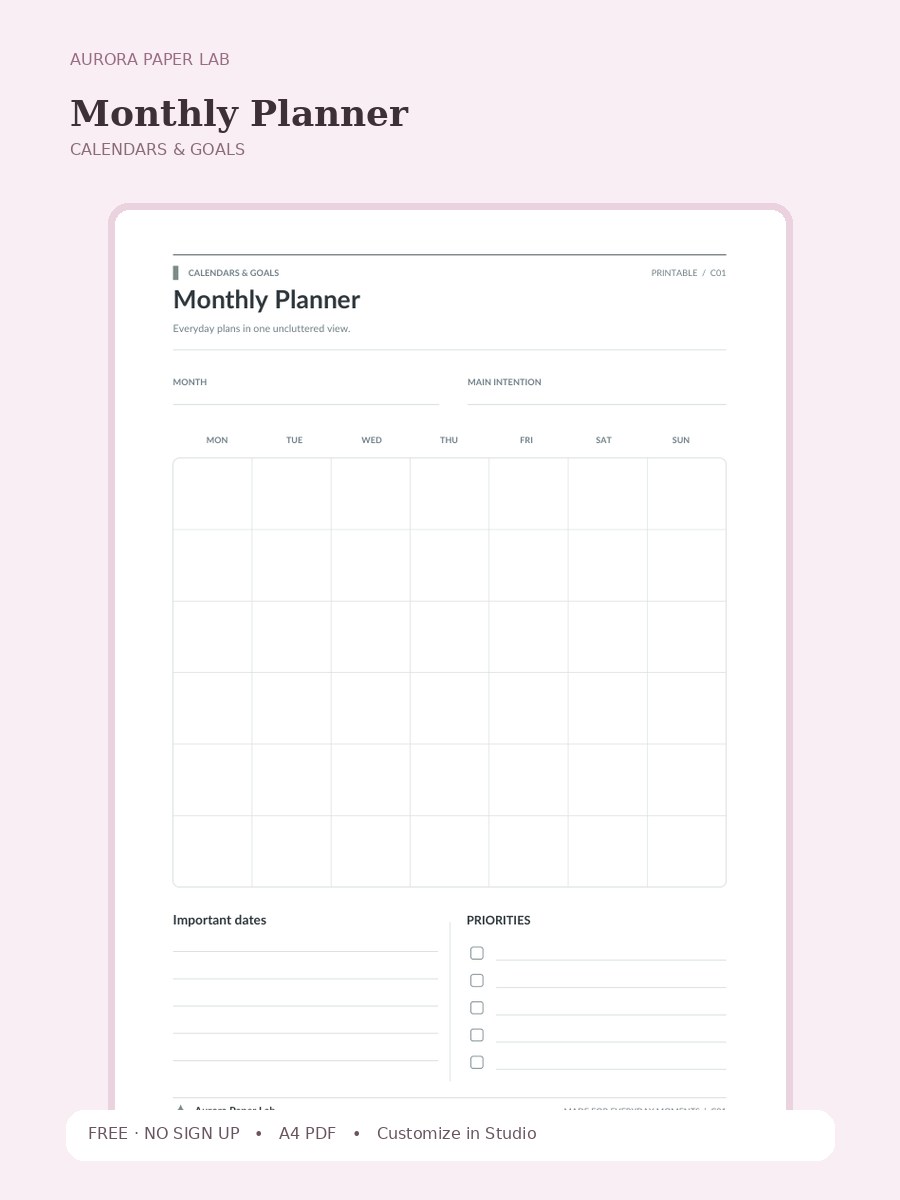
Everyday plans in one uncluttered view.
FREE · NO SIGN UP →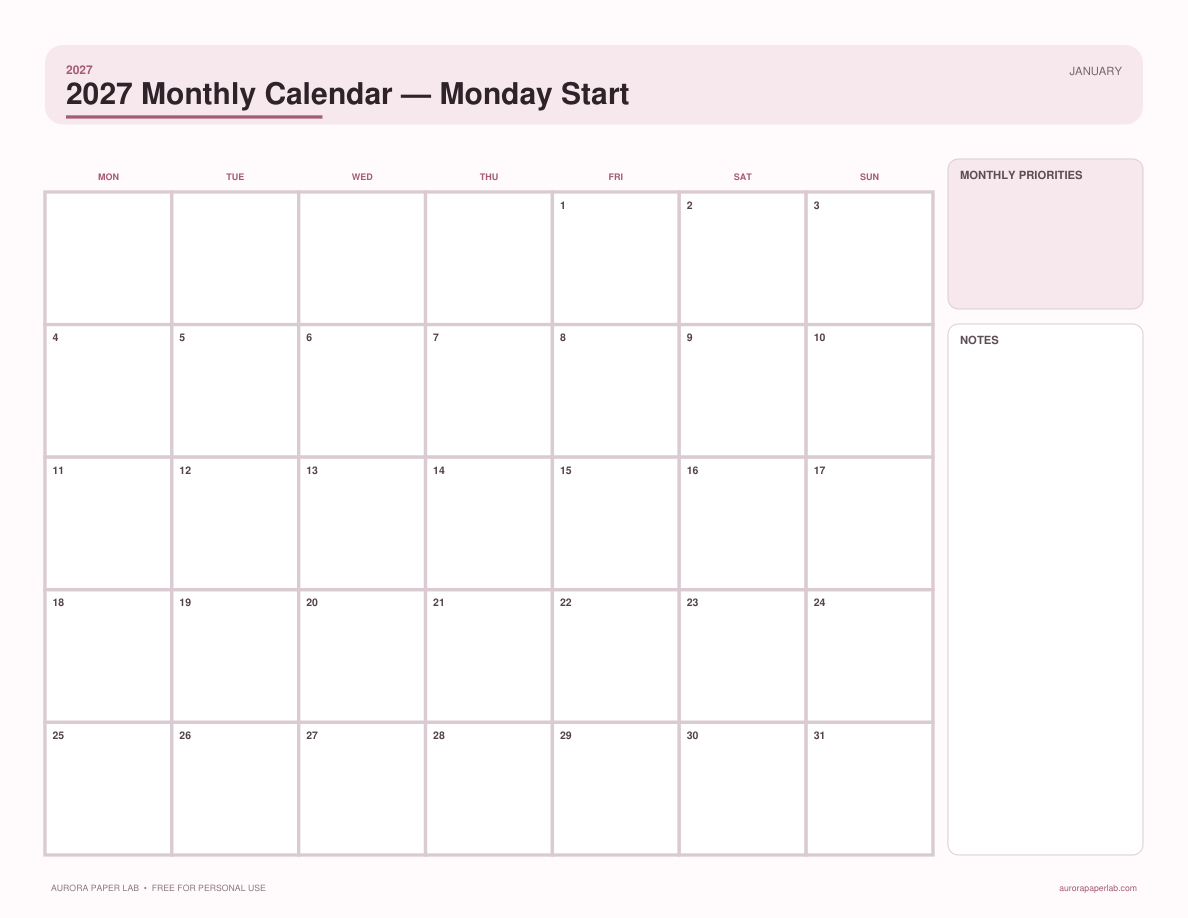
A complete 12-month 2027 calendar with Monday-first weeks, generous date boxes, and monthly notes.
FREE · NO SIGN UP →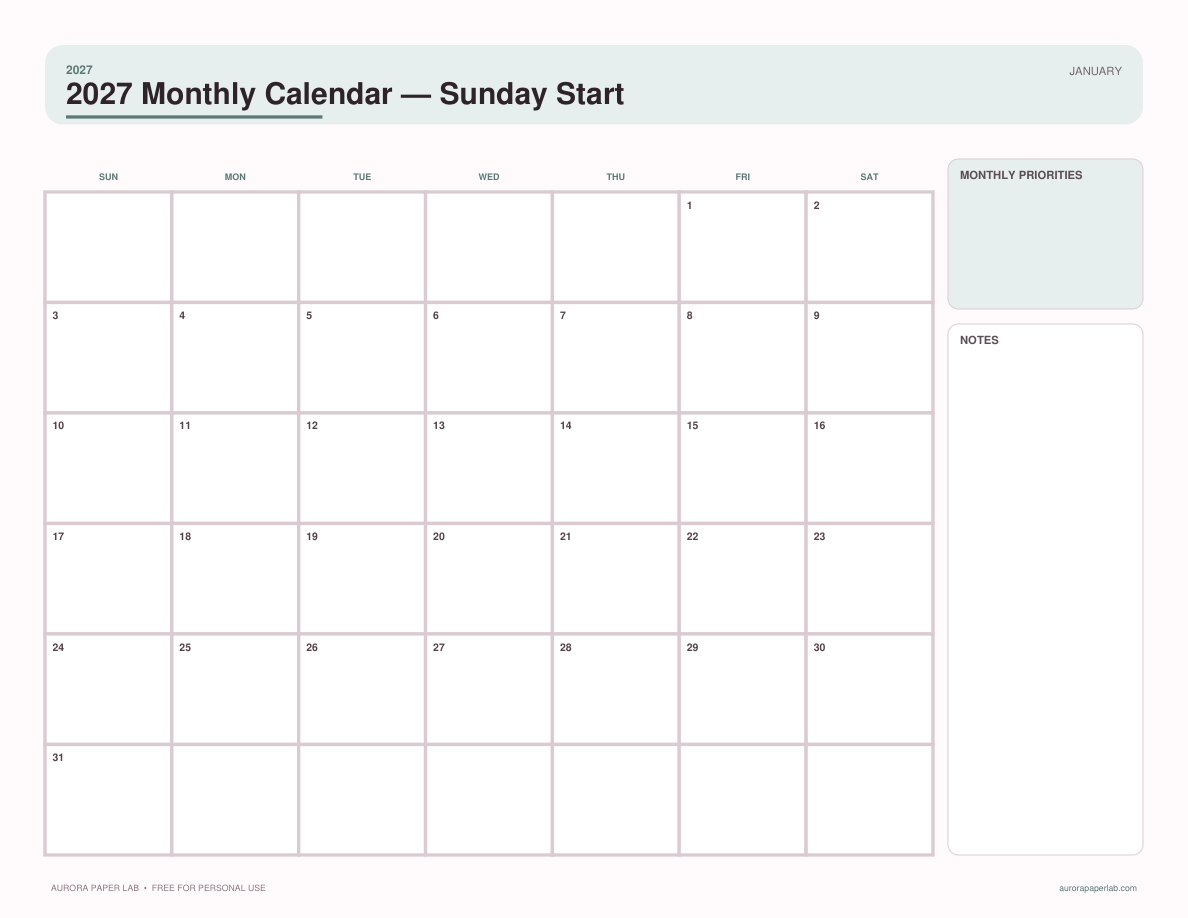
A complete 12-month 2027 calendar with Sunday-first weeks, clear date boxes, and monthly priorities.
FREE · NO SIGN UP →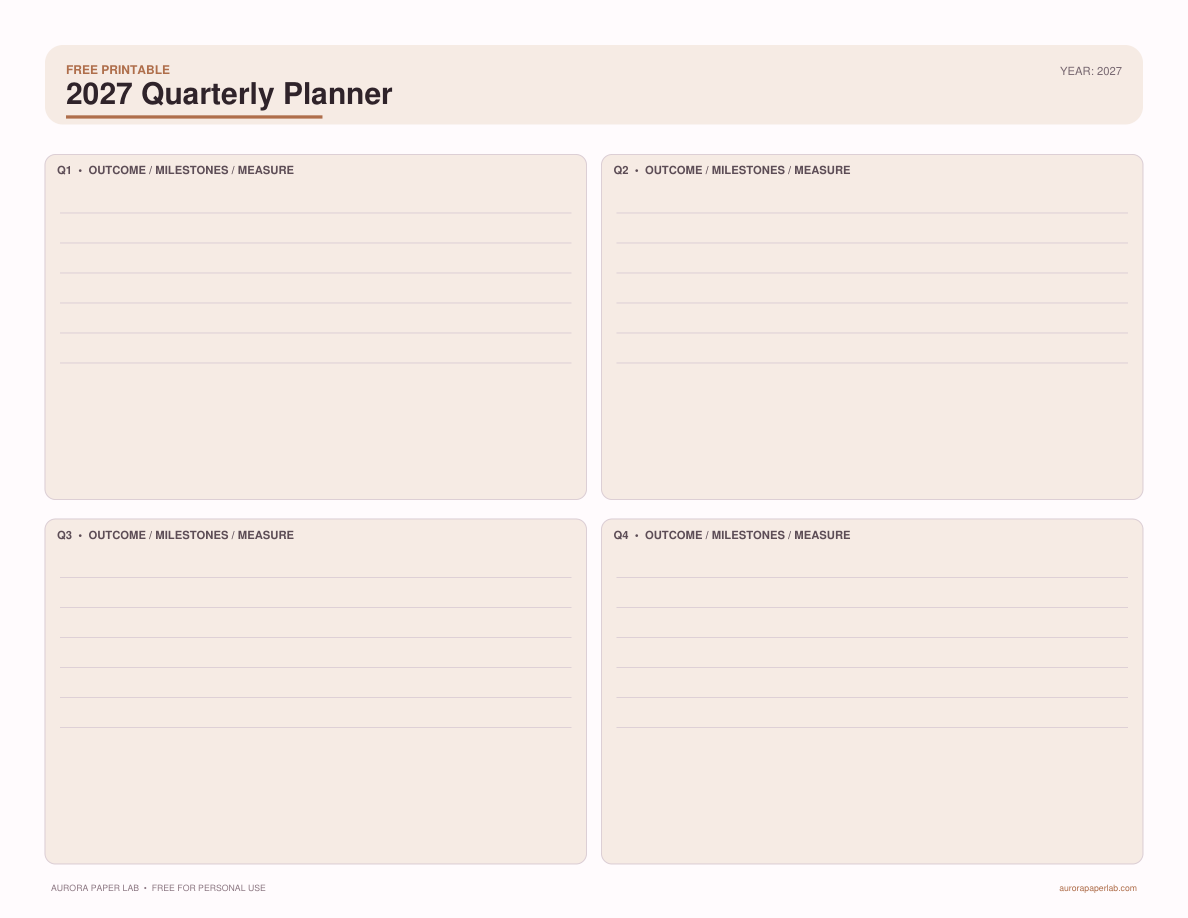
Turn annual goals into four focused quarters with outcomes, milestones, measures, and review prompts.
FREE · NO SIGN UP →