Easy to use
Start by writing the date, month, project or other context requested at the top of the Thirty Day Project page.
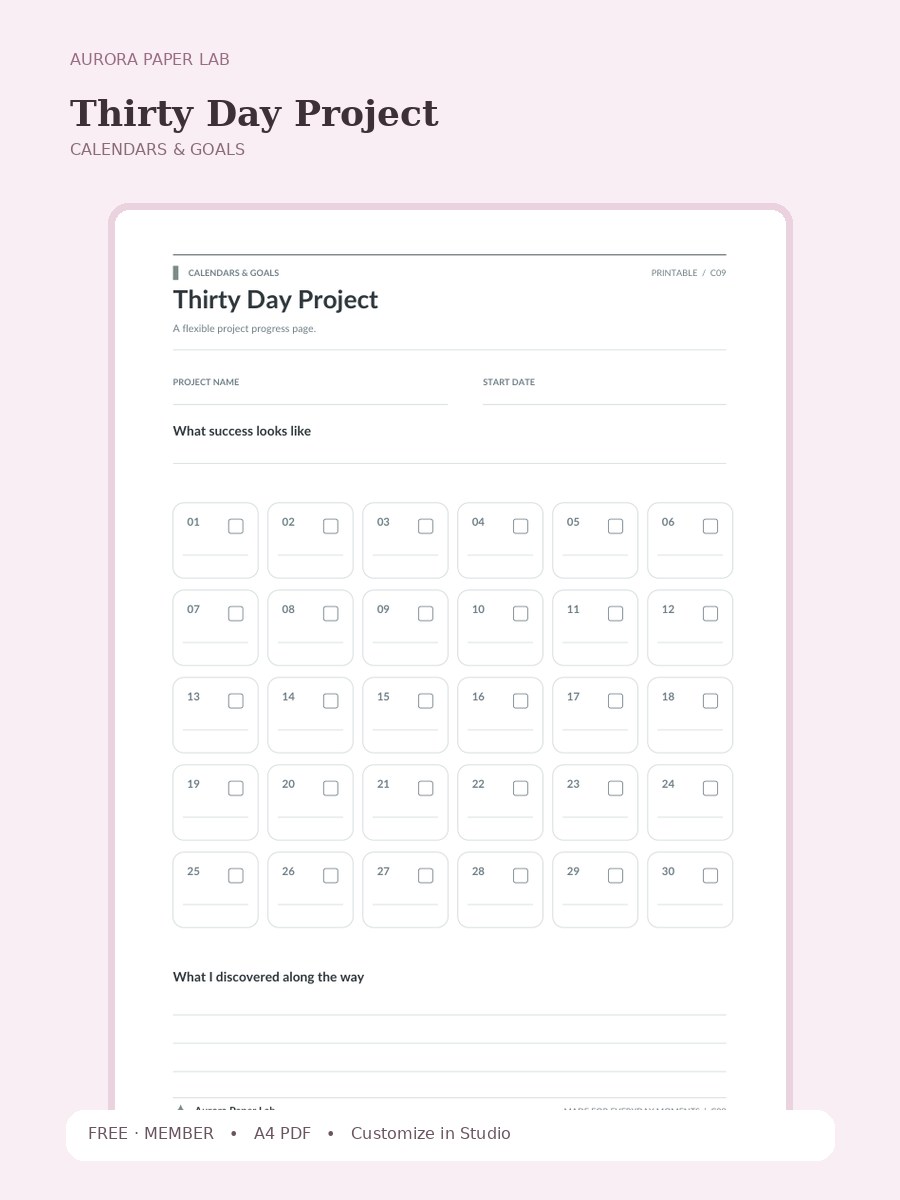
A flexible project progress page.
Preview and customize this page freely. A free member account is needed only when you download the original file.
Start by writing the date, month, project or other context requested at the top of the Thirty Day Project page.
Open it in Design Studio and add your own text, colors, stickers and images.
A useful way to review this page is to look at the field that matters most to the worksheet—What I discovered along the way—and write one small adjustment for the next use.
Yes. The resource page is public and the file is free; a free Aurora member account is required only at the download step.
The resource is provided as A4 PDF. Keep one clean master copy before writing on, duplicating or importing it.
PDF planner pages can usually be imported into PDF-friendly note apps such as Goodnotes. Compatibility depends on the app and device, so keep the original file and test your workflow first.
Yes. Choose Customize in Design Studio to open Thirty Day Project as a locked reference layer and add your own text, stickers, images and layout elements on top.
Yes. Print Thirty Day Project at Actual Size / 100% on A4 paper first. If your printer adds margins, test a single sheet before printing several copies.
Thirty Day Project is a one-page A4 printable designed to turn dates, intentions and longer-term goals into a page you can scan quickly. A flexible project progress page. The page includes Project Name, Start Date, What success looks like, What I discovered along the way, so the structure is specific to this worksheet rather than a generic notes page.
Print Thirty Day Project at Actual Size / 100% on A4 paper first. If your printer adds margins, test a single sheet before printing several copies.
For digital use, import a clean copy of Thirty Day Project, duplicate the page before writing, and keep the original in a template folder so the layout stays reusable.
Open the template in Studio, keep the base page locked, and layer your text, stickers and images above it.
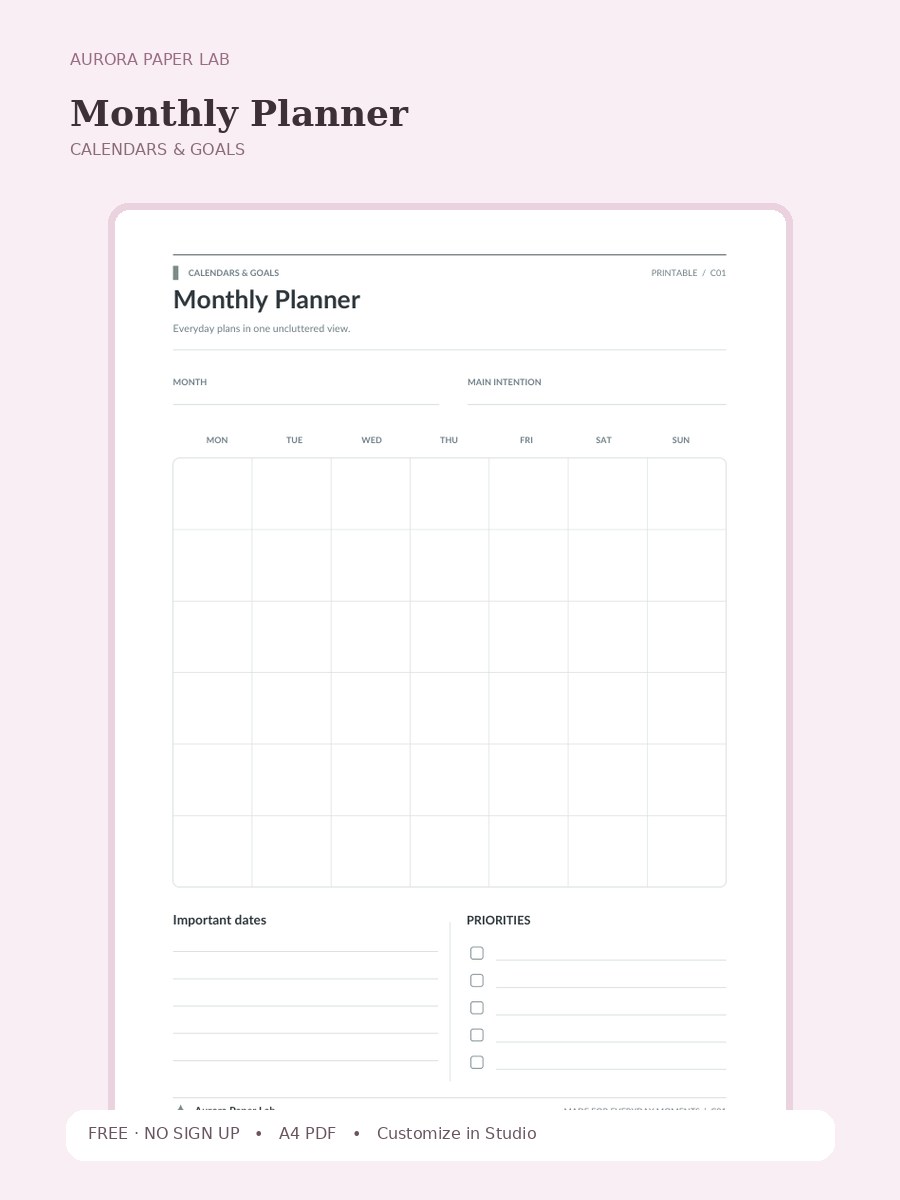
Everyday plans in one uncluttered view.
FREE · NO SIGN UP →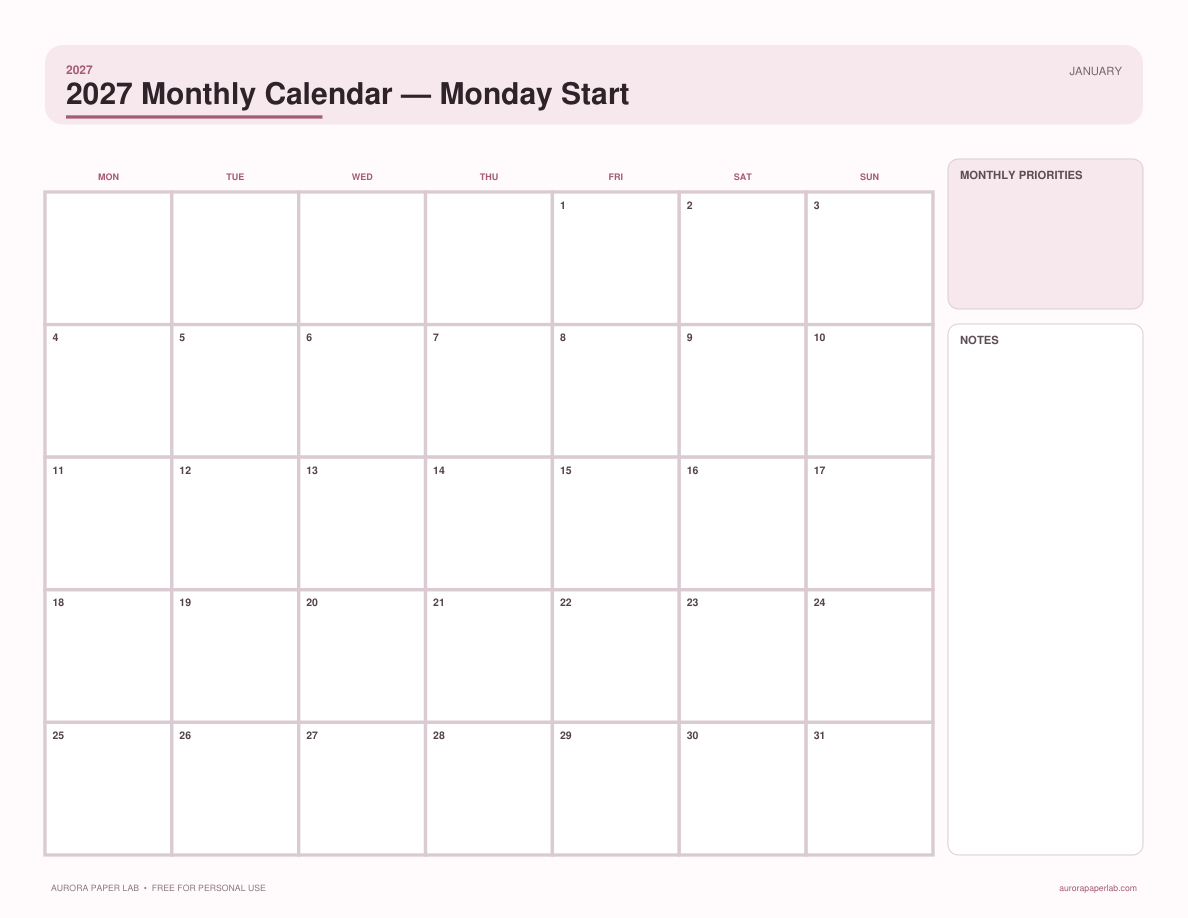
A complete 12-month 2027 calendar with Monday-first weeks, generous date boxes, and monthly notes.
FREE · NO SIGN UP →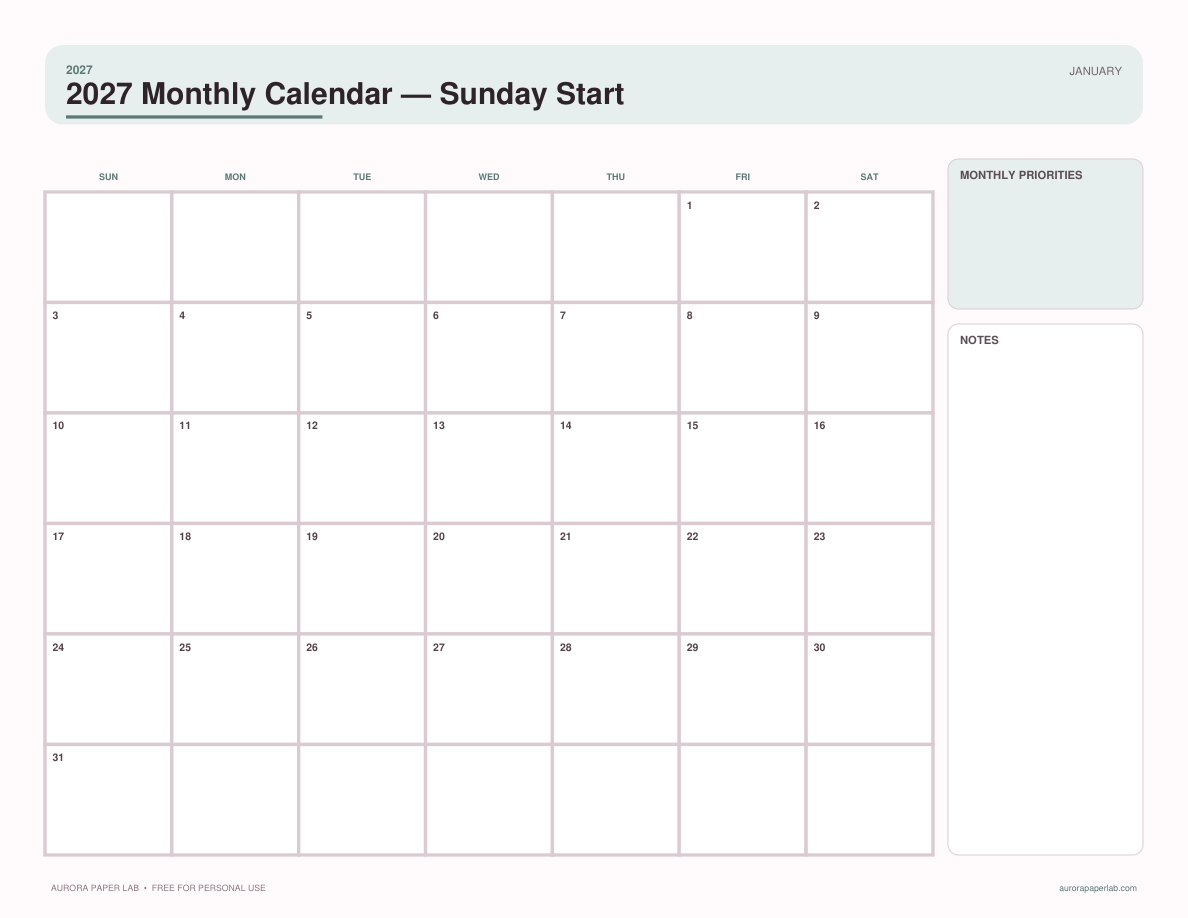
A complete 12-month 2027 calendar with Sunday-first weeks, clear date boxes, and monthly priorities.
FREE · NO SIGN UP →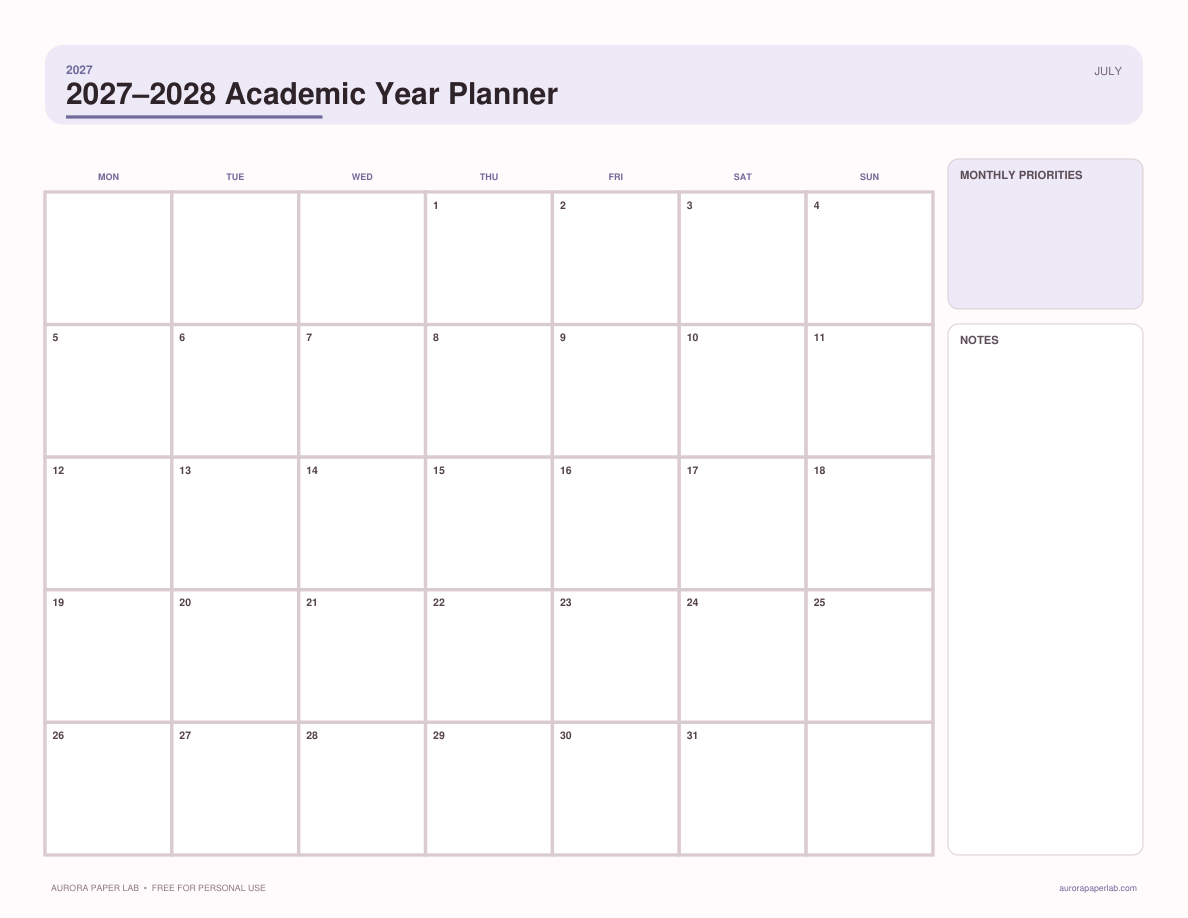
Plan July 2027 through June 2028 with term goals, key dates, assignments, and monthly milestones.
FREE · NO SIGN UP →