How to Print A4 Planner Pages at Home Without Shrinking the Layout
Check scale, margins and paper before printing a full batch of planner pages.
Why this approach works
A4 planner pages print well at home when paper size, scaling and printer margins are checked before a full batch is sent to the printer.
Set up the page before you start
Confirm that the PDF is actually A4, load A4 paper, and open the print dialog instead of relying on a browser quick-print button. Choose the correct printer and inspect the preview before printing.
A practical workflow
For most Aurora A4 pages, start with Actual Size or 100 percent. If the printer cannot print close to the paper edge, use Fit only when the preview shows that no important writing area is being reduced too much.
Example
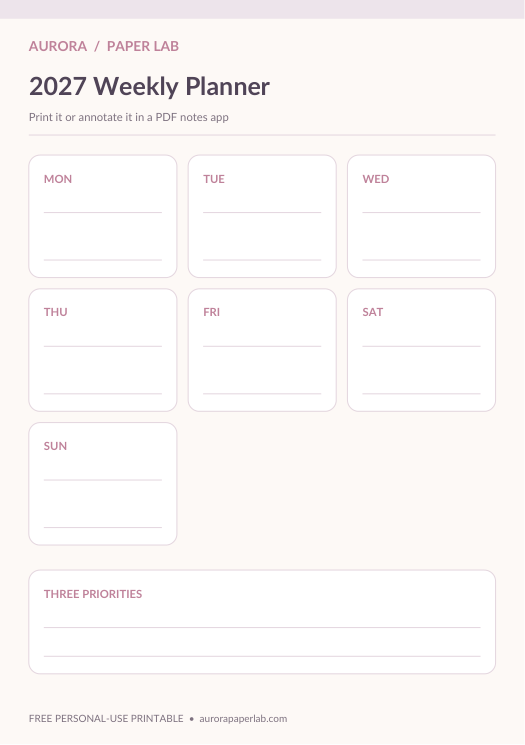
Print one test sheet, compare the margins on all four sides, write in a few boxes, and punch or trim it exactly as you would the final planner. A successful test is more useful than guessing from the screen. The example is intentionally simple.
Common mistakes to avoid
Avoid changing several settings at once. Scaling, borderless mode, duplex mode and paper source can each affect the result. Change one variable, make a test print, and keep a note of the setting that worked.
Review and improve the system
If the print looks soft, verify that the PDF viewer is printing the file directly rather than a low-resolution screenshot. If alignment is off, check printer margin calibration before editing the planner artwork itself.
A realistic example to work from
A common printing problem appears when a correctly sized A4 PDF is silently reduced to fit a printer's default margins. A planner may look normal on screen but print with narrower boxes, shifted punch margins or text that is smaller than intended. The safest workflow is to test one page, verify the paper size and scaling setting, then compare the printed page with the expected physical dimensions before printing a full set.
A practical quality checklist
- Printer paper size is explicitly set to A4
- Scaling is set to Actual Size or 100 percent
- Orientation matches the file
- Borderless mode is used only when the design actually reaches the edge
- One test sheet is printed before a batch
- Duplex binding direction is checked before printing front and back
If two or more of these checks repeatedly fail, simplify the workflow before adding another page, app or decorative element.
Problems that usually make this harder than necessary
- Using Fit to Page by default
- Printing A4 artwork on Letter paper without intentional resizing
- Assuming a home printer can print to the exact edge
- Starting a 50-page batch before checking one sheet
These problems have a common pattern: the planner starts asking for more maintenance than the activity itself.
Adapt the method to your situation
- Single-sided binder pages with a wider punch margin
- Duplex pages for a bound planner
- Draft printing in grayscale before using premium paper
The format can also change over time.
Questions for the next review
At the end of a week, project, trip, reading cycle or other natural review point, answer only the questions that help you decide what to do next:
- Did the printed boxes keep their intended proportions?
- Are margins even enough for the binding method?
- Is the text still comfortable to read at arm's length?
- Would a lighter paper or lower ink setting be better for routine pages?